Grading
Grade the whole stack from a copier scan, or from your phone.
Students fill in the answer sheet Compose printed with your test. Scan the stack on the copier or photograph the sheets, and Compose scores each one against its own version's key. You check only the marks it was not sure of.
Scan the stack on your copier
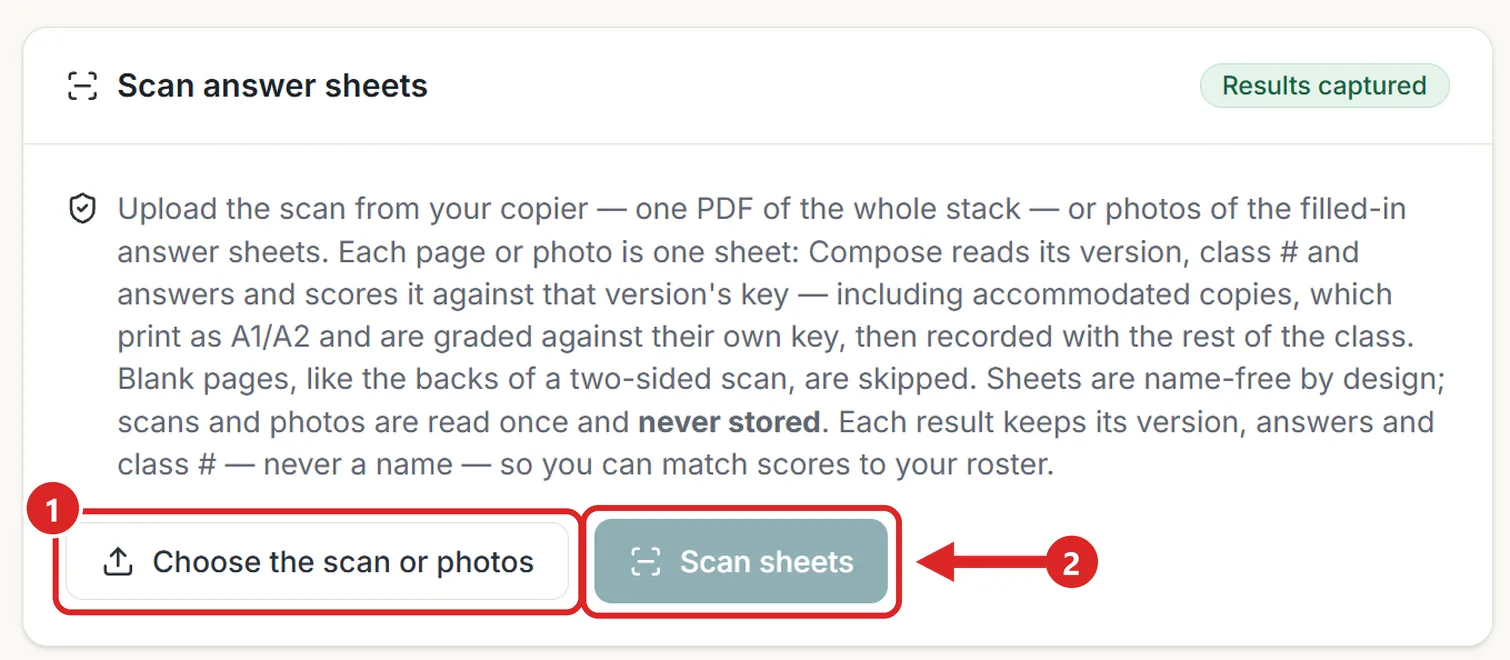
Put the whole pile in the copier, scan it to one PDF and email it to yourself. One sheet per page, one-sided or two-sided: the blank backs are skipped and listed by page number, so they are not read and do not count as sheets. In Compose, open the test, tap “Scan & grade”, choose the PDF and tap “Scan sheets”. Compose reads the version, the class number and the bubbles on every page.
Or photograph each sheet
No copier handy? Take one photo per sheet, straight on, in good light, with the whole sheet in the frame. A phone camera is fine. Choose every photo at once and Compose reads them the same way.
You check only what Compose was not sure of
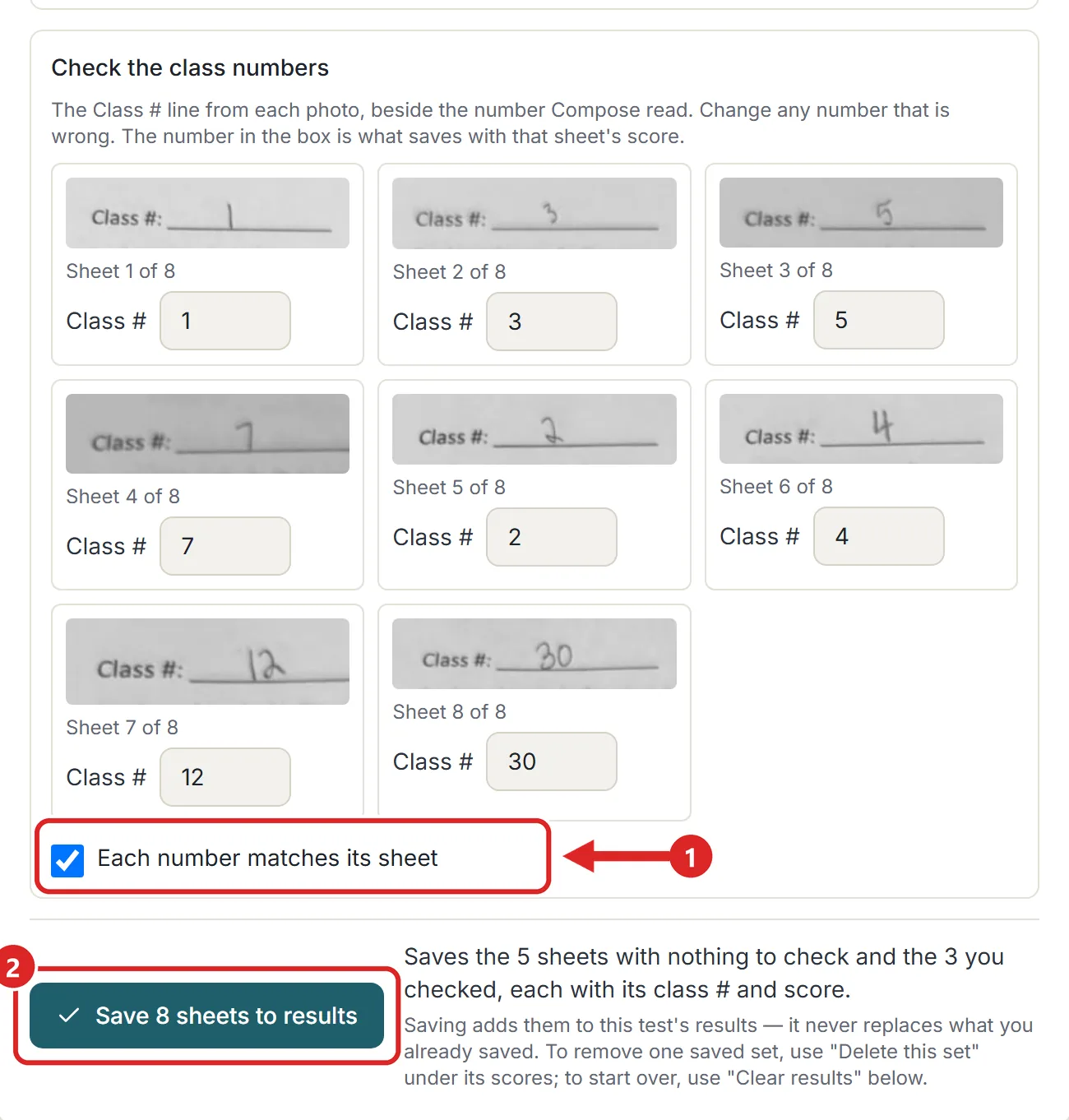
The sheets that need a look come first, each saying why: a blank, double-marked or faint bubble, a version it could not read, a class number on two sheets, or marks that fit another version far better. Each uncertain mark shows what Compose read beside the photo, and you change any that are wrong. The sheets with nothing to check are one line and save in one step. A sheet still waiting on you is not saved until you check it.
Scores for your gradebook
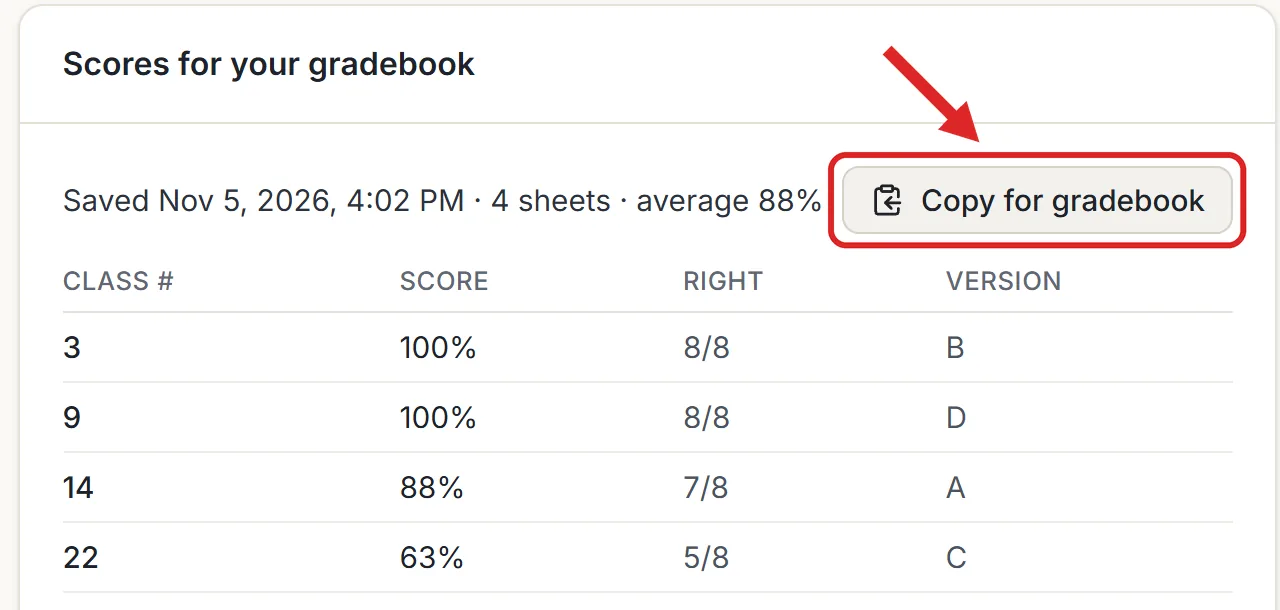
The results open on the scores: each class number with its score, and “Copy for gradebook” copies them as two columns to paste next to your class list. Below the scores: the class average, the questions missed most with the wrong answer most students chose, and a retest built from the questions the class missed.
The sheets Compose reads
- • Compose reads the answer sheet it printed for your own test: one per version, with a “Class #” box, a short line for initials and no name line. Students write their class number, never a name, and that number is how scores match your roster. The initials are for you, to tell whose sheet is whose: Compose does not read or keep them.
- • It does not read Scantron or ZipGrade forms, or answers circled on the test itself.
- • Scans and photos are read once and not stored. Each result keeps its version, answers, class number and its place in the stack you scanned, never a name.
- • A long test's answer sheet prints its questions in two columns, so every student's sheet is still one page: one page of the scan, or one photo, per student.
What it costs
Free includes 200 answer sheets a month, on every test you make. Pro keeps grading past that.
Compose Pro
Written answers: Compose reads and proposes; you confirm every one.
The same scan or photos read the short answers too: what each student wrote, next to your own key answer, with a proposed verdict. Nothing counts until you confirm it.
- • Confirm instead of decipher: the photo, the transcription, your key answer, and a proposed verdict — one tap to confirm, one to flip. The tallying, entry, and item analysis come free.
- • Judged only against YOUR canonical answer from your own bank — never a model's opinion of the subject. Partial answers are always left to your call.
- • Nothing a student wrote is ever stored: Compose keeps your credit decisions, not their words. Sheets are name-free by design.
Plenty of tools grade digital work. Your stack is paper — and Compose printed the test, holds the key, and already reads the sheets that score your bubbles, so confirming a read beats deciphering handwriting one paper at a time.
Reading written answers is part of Compose Pro; bubble-sheet scanning stays free on every plan. How written answers are read
Try it on your own test
Every account starts free — you can see the whole flow before deciding anything. The guide walks through every tap: Grade a test from a scan or photos of the answer sheets.