Make shuffled versions of a test you already have
Give Compose your test as a Word file, a PDF, photos of the pages or pasted text. You get four shuffled versions, an answer key for each, and an answer sheet for each.
Pasting is free on every plan. Free includes three uploads of up to 40 pages each; Pro includes uploads.
- 1
Open a new test
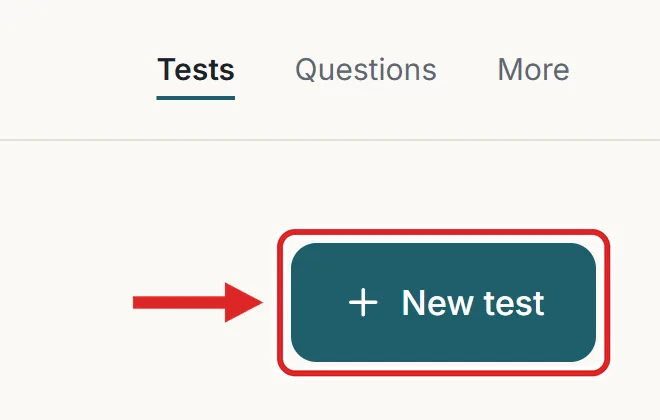
In Compose, open Tests and click “New test”. The page asks “What are you giving your students next?”
- 2
Choose the two options first, if you want them
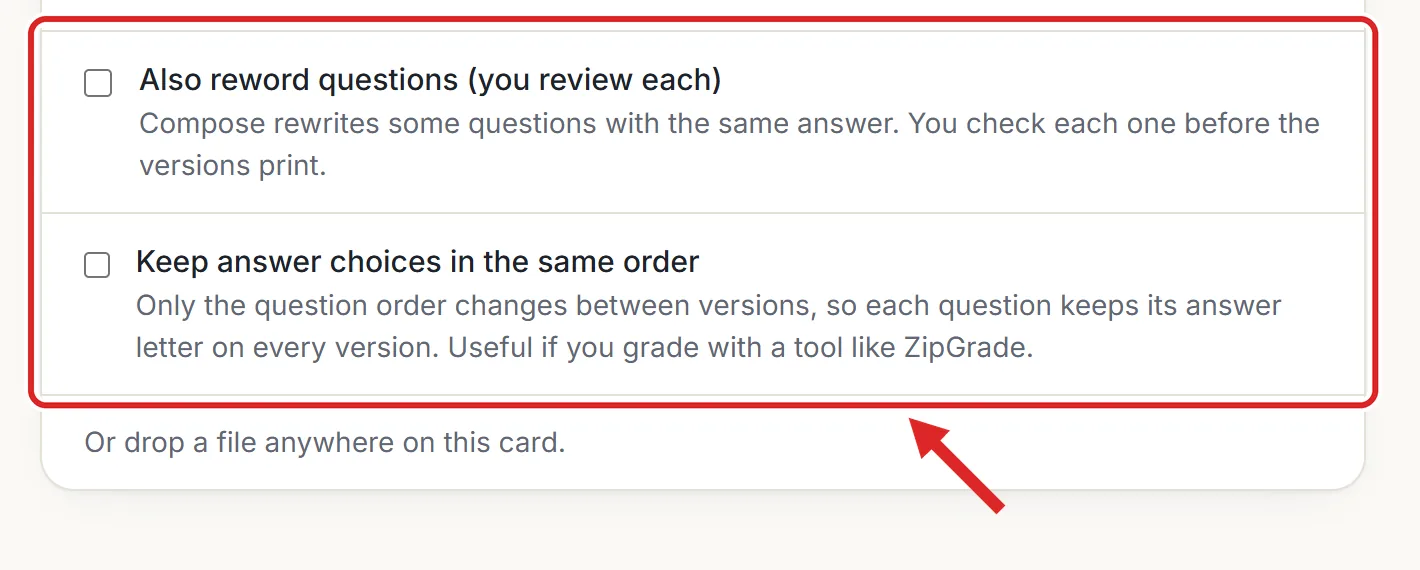
Both are off unless you tick them. “Keep answer choices in the same order” shuffles only the question order, so each question keeps its answer letter on every version. “Also reword questions (you review each)” rewrites some questions with the same answer, and you check each one before the versions print. On your first test they sit under “Options: reword questions, keep answer order”; tap it to see them.
- 3
Give it your test
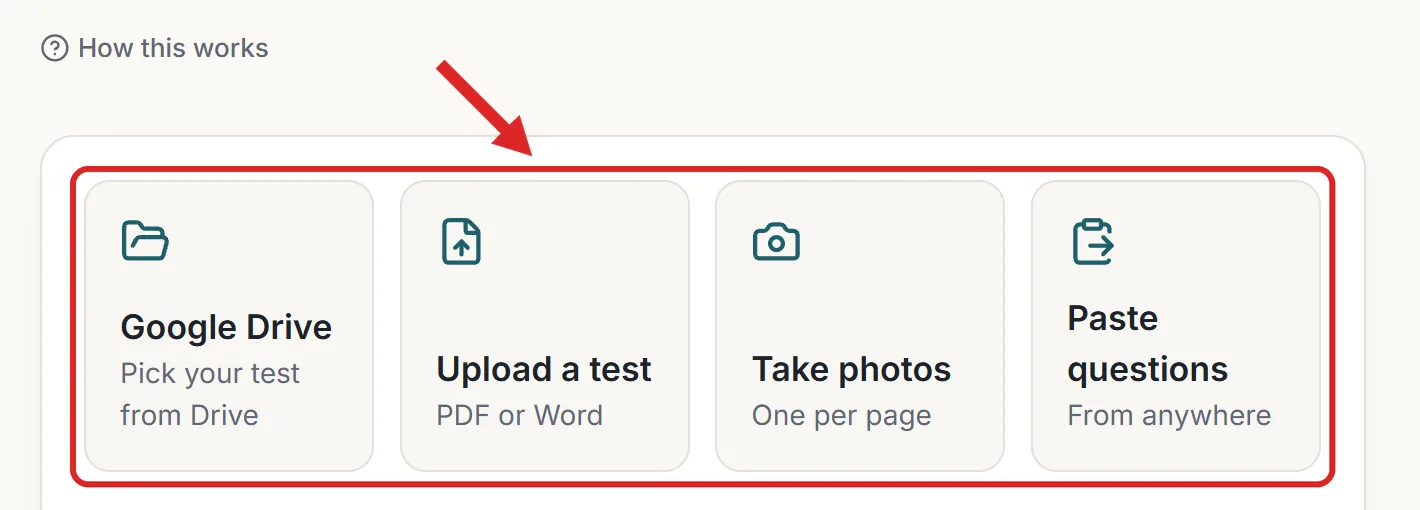
“Upload a test” takes a PDF or a Word file (.docx), or drop the file on the card. “Take photos” takes one photo per page; on a phone it opens the camera, and you send the pages in order. “Paste questions” takes text from anywhere: number the questions, put each choice on its own line, then click “Make my test”. “Google Drive” picks a file from your Drive.
- 4
Let it read
“Reading your test…” takes under a minute for a few pages and a few minutes for a long file. You can leave the page; the test will be there when you come back.
- 5
Answer what it asks
If something wasn’t clear, it says “Almost ready — check … things.” Keep a question, leave it out, or change its wording. If your document didn’t mark an answer, tap the right letter under “Which answer is correct?”.
- 6
Print
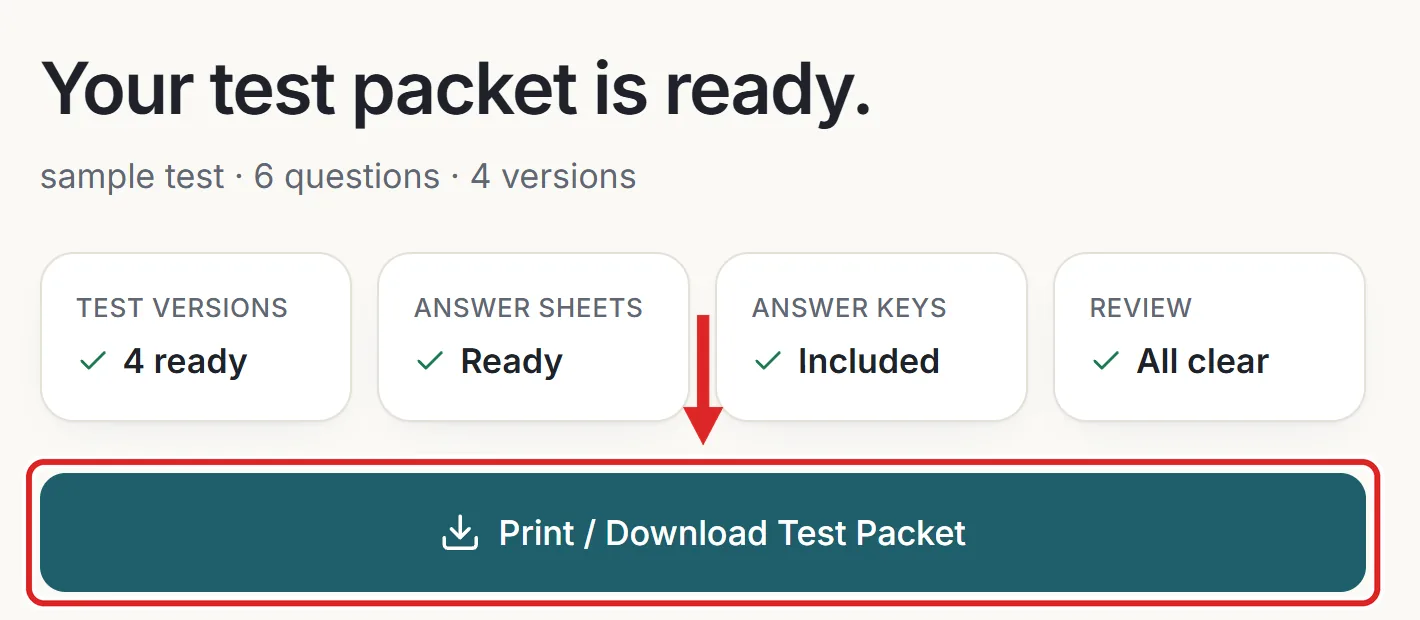
When it says “Your test packet is ready.”, click “Print / Download Test Packet” for one Word file with all four versions, an answer sheet for each, and the keys.
New to Compose? You’ll create a free account first, then land on “Make a test”, the screen this guide starts on.
Good to know
- No test with you yet? Before your first test, “See a finished example” shows four versions of a sample quiz with their keys and answer sheets. On a phone, “Remind me at my computer” emails you a link that signs you in, at the time you pick.
- Answers are optional. Compose asks for any it can’t find, and the student versions are ready before the key is.
- Word files must be .docx. Save an older .doc as .docx first.
- Every test’s questions are also saved to Questions, so you can reuse them.
- Need more than four versions, or want to pick the questions yourself? Use “Create test” in the Full workspace (More, then Full workspace): up to 8 versions.
Related guides
Checked against Compose on November 24, 2026. Something here doesn't match what you see? Tell us.