Keep your questions and reuse them
Every test you make saves its questions. Add more without making a test, find one fast, and build a new test from the questions you pick.
- 1
See what you have
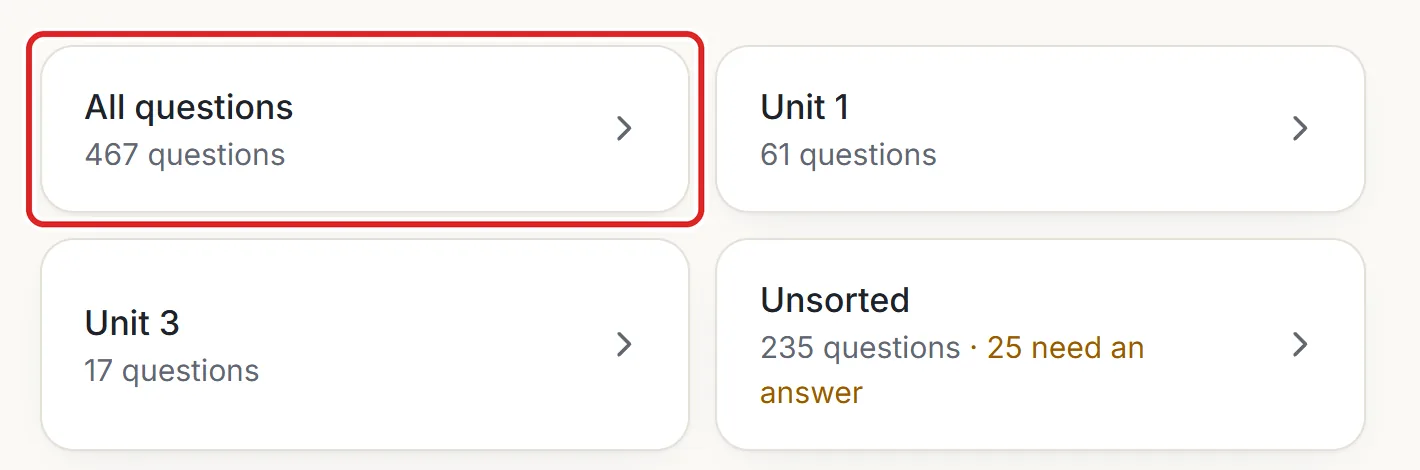
Open Questions. “All questions” holds everything, with a card for each unit. A card says when questions there need an answer.
- 2
Add questions without making a test
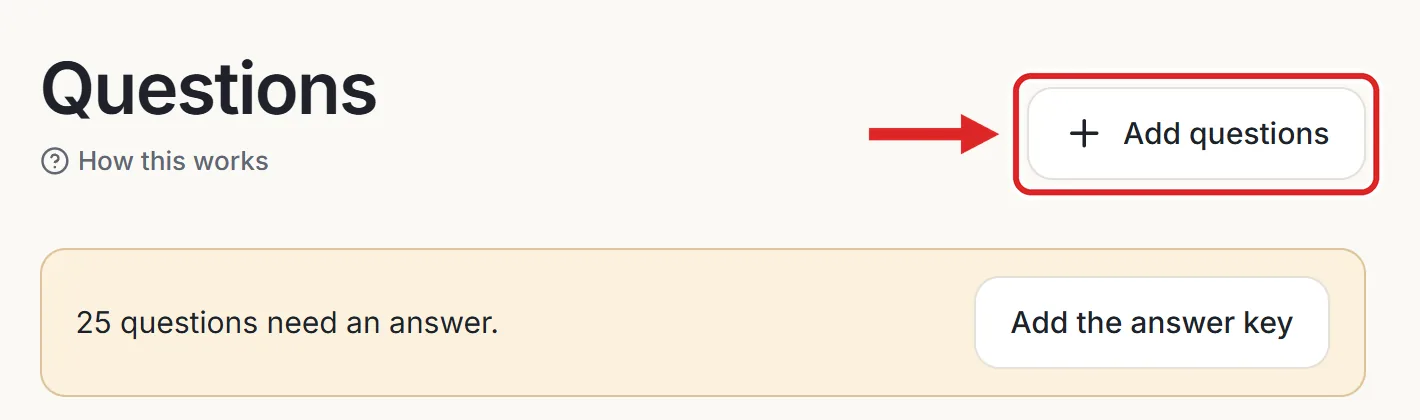
Click “Add questions”, then paste, upload a file or take photos, the same way as a new test. Pasted questions are added with “Add to my questions”. Questions already in your bank aren’t added twice.
- 3
Find and fix one
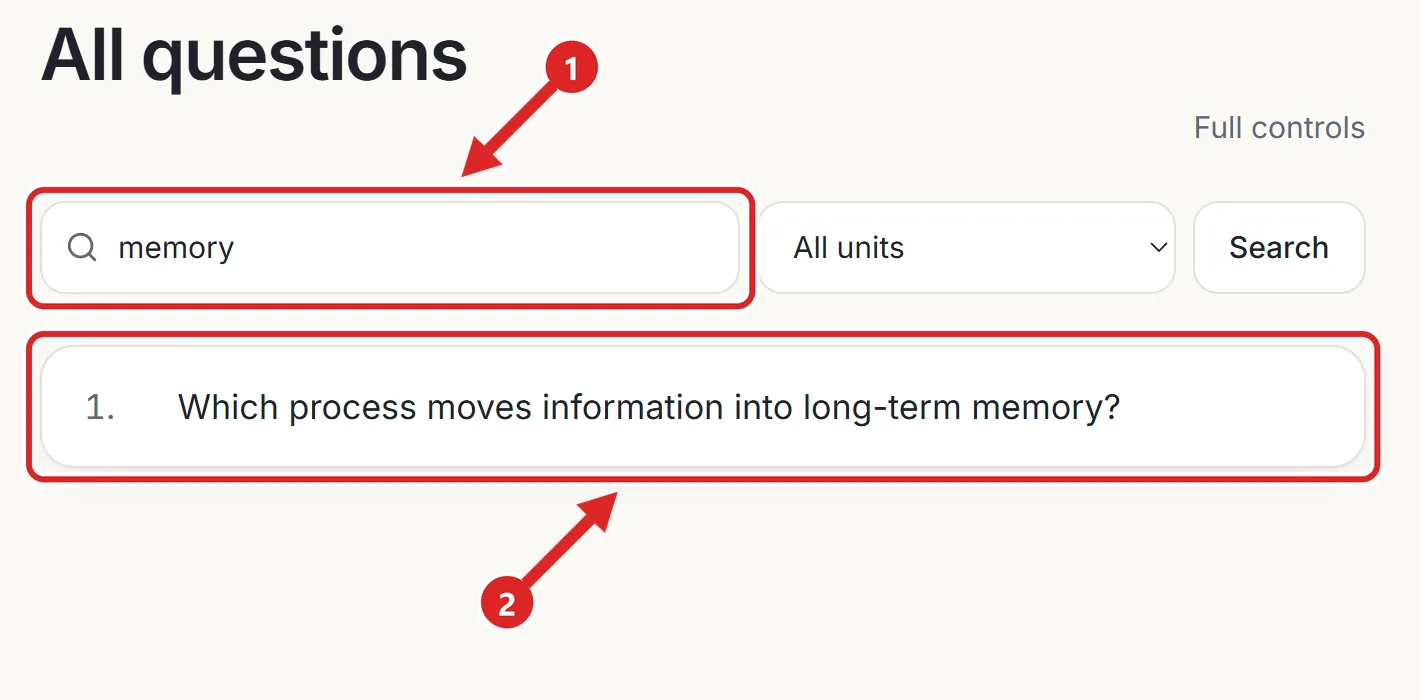
Open “All questions”, search a word (such as “memory”) or pick a unit, and click a question to edit it.
- 4
Build a test from the questions you pick
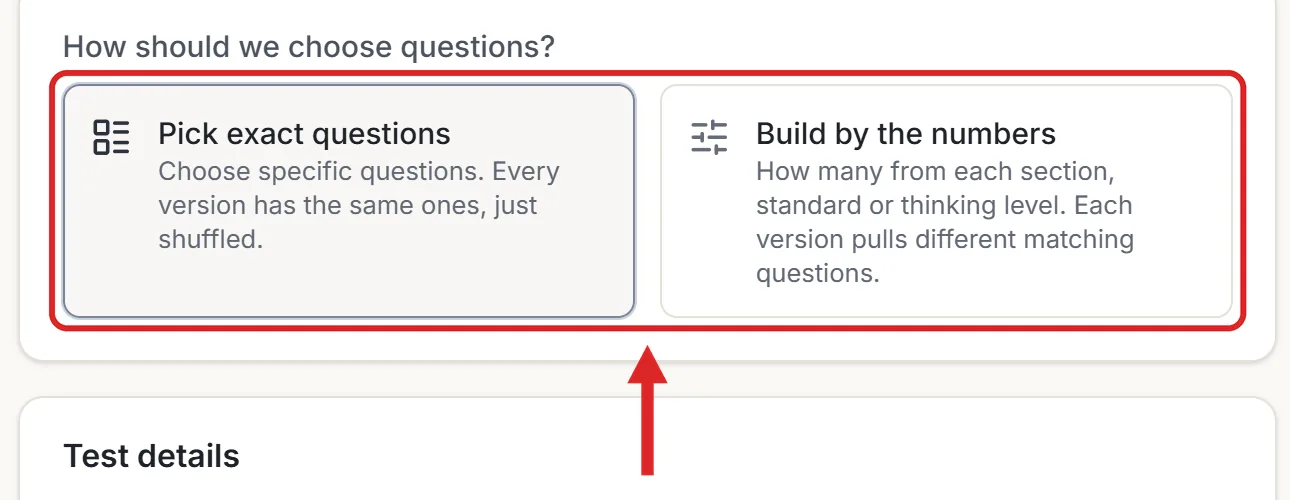
In the Full workspace, click “Create test”. Under “How should we choose questions?”, choose “Pick exact questions” or “Build by the numbers”, set the number of versions (up to 8), click “Create test”, then “Generate versions”.
New to Compose? You’ll create a free account first, then land on “Open Questions”, the screen this guide starts on.
Good to know
- “Full controls” on a question or list opens it in the Full workspace, with every setting.
- Make-ups draw from the bank: more questions on a topic means more of a make-up is new.
Related guides
Checked against Compose on November 5, 2026. Something here doesn't match what you see? Tell us.